
Uploading Documents
Email Submission
Every ClearStaq organization gets a private submission address. Forward an email with statement PDFs attached, and the analysis comes back to your inbox, with no login needed. It's the fastest path from "merchant sent me statements" to "analyzed."
Find your submission address
Go to Settings → Email Submission. Your org's address looks like:
[email protected]
Click Copy and save it as a contact. Most teams name it "ClearStaq."
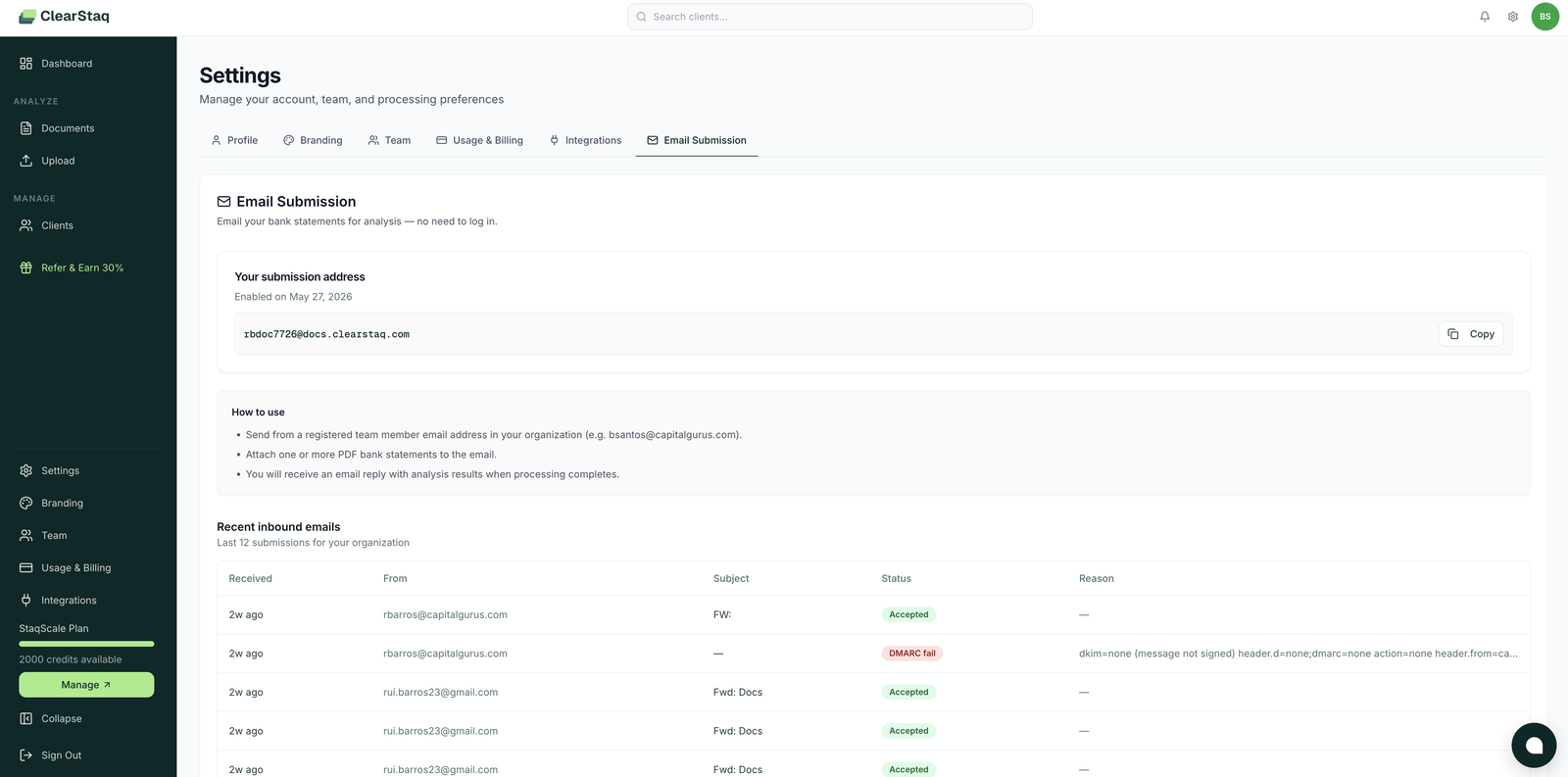
How to use it
- Send (or forward) from a registered team member's email address. Only addresses belonging to members of your ClearStaq organization are accepted. This is what keeps the address safe to keep in your address book.
- Attach one or more PDF bank statements. Forwarding a merchant's email with attachments intact works perfectly.
- Get the results by reply. When processing finishes, ClearStaq replies to your email with the analysis results. The documents also appear in your dashboard, linked to the auto-detected client.
Applications and offers by email (Deal-flow)
With the Deal-flow add-on, the same page has two more addresses, for emails that come from outside your team:
| Section | Address | Who sends to it | Plan |
|---|---|---|---|
| Offers from partners | Offers address | Partners send offers and answers; you can also forward their emails. No credits are used. | Deal-flow |
| Applications from brokers | Applications address | Brokers send applications, which become applications in ClearStaq. | Deal-flow Plus |
Click Turn on in a section to get its address, then Copy it and share it. Emails from outside your team must be DKIM-signed by the domain they're sent from. These sections are for the Owner, Admins and members with the Integrations permission.
Guides: Partners & Offers · Applications from Brokers
Receiving at your own address
Partners and brokers can email an address of yours, like [email protected], instead of the ClearStaq one. Under the Applications address or the Offers address, in Your own address (optional):
- Enter your address and click Add. Up to 5 per address.
- At your email provider, forward that address, unchanged, to the ClearStaq address shown above it.
- ClearStaq emails your address a check. When the forward brings it back to ClearStaq, the address shows Verified.
A check is valid for 24 hours. If the address shows Expired, or stays Pending, fix the forward and click Resend check.
Your own addresses work for applications and offers only. The statements address above keeps accepting emails from your team members only.
The inbound log
The Recent inbound emails table shows your organization's last emails received, with their status and the reason:
- Accepted: processed normally.
- DMARC fail: the email failed sender authentication and was rejected.
- Other statuses explain why an email wasn't processed, like Wrong sender, No attachments, Out of credits or Daily limit.
Troubleshooting DMARC failures
ClearStaq verifies sender authenticity (DKIM/DMARC) so nobody can spoof your team's addresses into your account. If a legitimate email is rejected:
- Forward from your primary mail client (Gmail, Outlook) rather than from apps that re-send mail without signing it.
- Check the From address is exactly the one registered in Settings → Team.
- If your company's domain itself fails DMARC, your IT team needs to align the domain's SPF/DKIM records. This also affects your regular deliverability, so it's worth fixing regardless.
FAQ
Can a merchant send statements directly to my submission address? Not directly. Only registered team members' addresses are accepted, for security. Have the merchant email you, then forward to ClearStaq in one click.
How many statements can I attach to one email? Multiple PDFs per email are supported; they're processed as a group for the same client.
Does email submission cost the same? Yes, 1 credit per document analyzed, same as web upload.
Who receives the results reply? The team member who sent the email. The full analysis is also in the dashboard for everyone with access to that client.
Can I disable email submission? Yes. Manage it from Settings → Email Submission or Settings → Integrations.