
Managing Clients
Clients & the Dashboard
Documents answer "is this statement good?" Clients answer "is this business good?" A client profile aggregates every statement a business has ever sent you into one risk and revenue picture.
The Dashboard
Your portfolio at a glance:
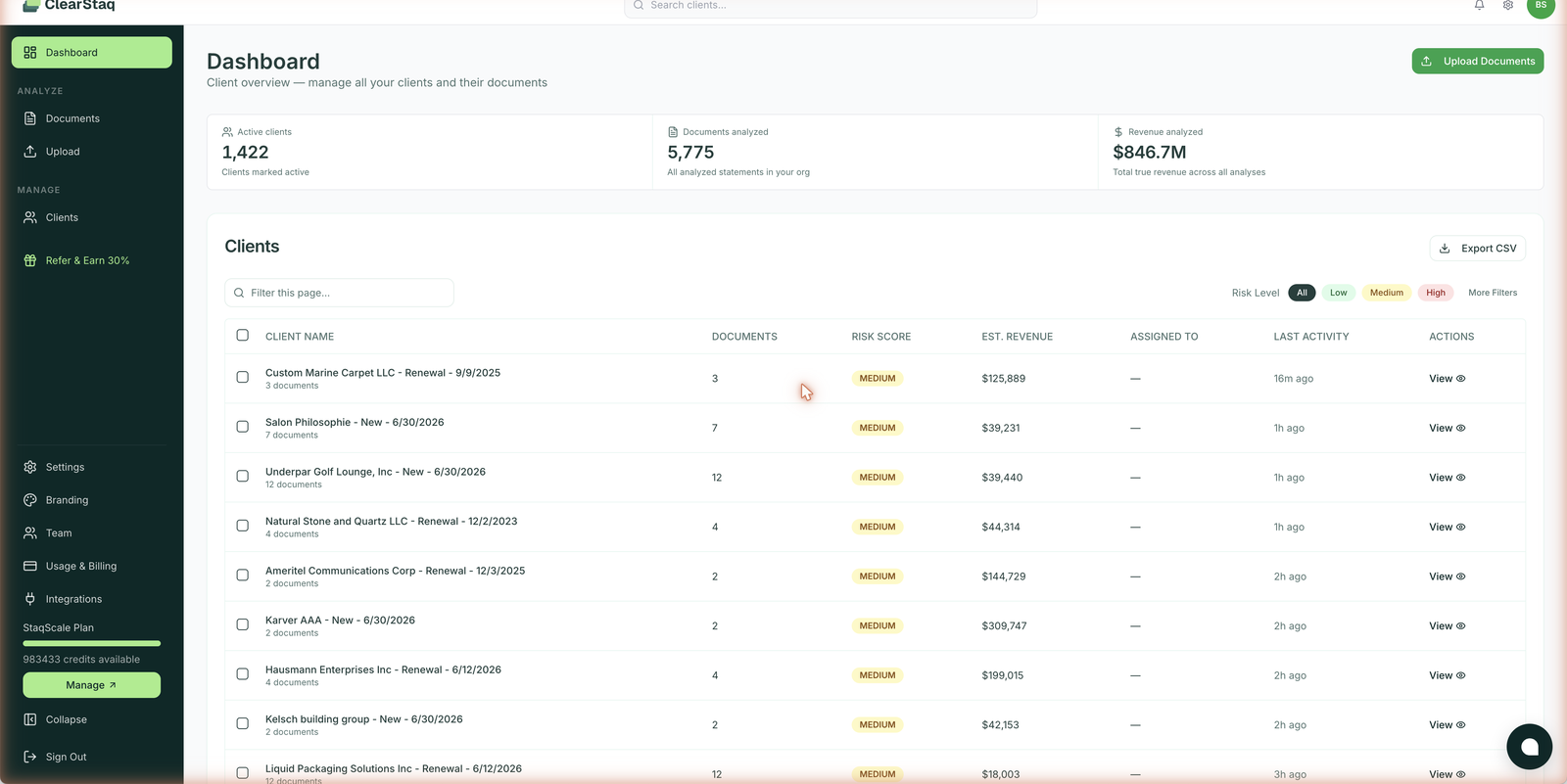
- Org-level stats: active clients, total documents analyzed, total true revenue analyzed
- Client list with per-client document count, risk score (Low / Medium / High), estimated revenue, assignment, and last activity
- Filters: risk level chips, more-filters panel, and per-page search
- Export CSV: the whole client book for your own reporting
- Global search: the top bar searches clients from anywhere in the app
Client profiles
Auto-detection
When a statement arrives without an assigned client, ClearStaq reads the account holder and creates the client automatically. Auto-created profiles show a banner ("Auto-detected client: please review and confirm details") with a Review button. Confirm the detected name and details once, and every future statement for that account holder lands in the right place.
Profile anatomy
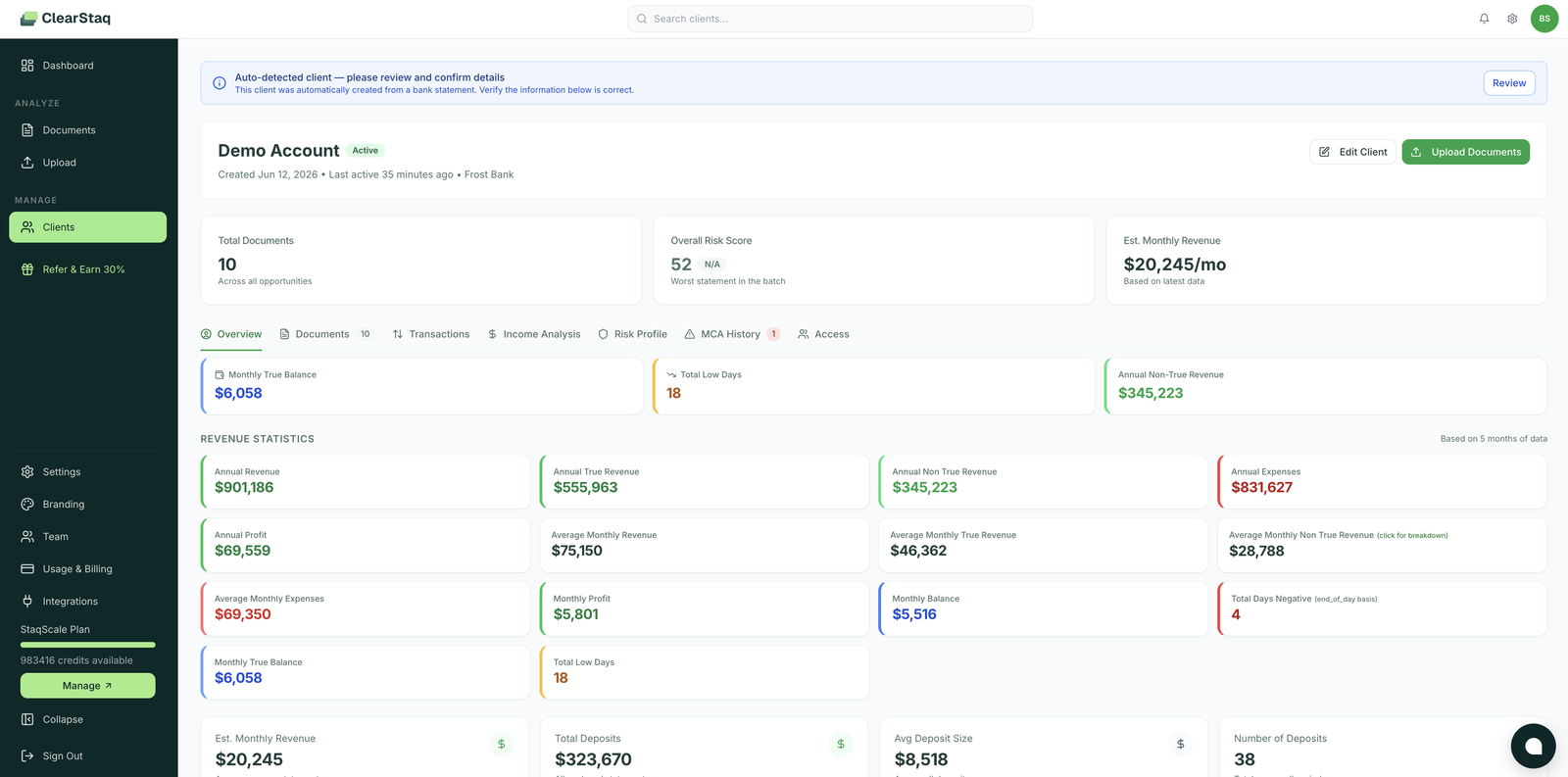
The header shows status (Active), tags (e.g. High Value), creation date, last activity, and primary bank, plus Edit Client and Upload Documents shortcuts. Headline cards: total documents, overall risk score (worst statement in the batch), and estimated monthly revenue.
The tabs
| Tab | What's inside | Deep-dive |
|---|---|---|
| Overview | Full revenue statistics across all statements (annual/monthly revenue, true vs non-true revenue, expenses, profit, monthly balance, low/negative days, deposit stats), plus Notes | this page |
| Documents | All statements grouped by application date, with bulk reprocess | Uploading |
| Transactions | Merged ledger across all statements, searchable | Transactions |
| Income Analysis | Monthly revenue trend + source breakdown with trends | Transactions & Income |
| Risk Profile | Aggregated fraud summary, all fraud findings, data quality checks | Fraud Detection |
| Advance History | Outstanding Advances + the per-lender Advance Monthly Breakdown | Stacking Detection |
| Access | Who on your team can see this client | below |
Notes
Free-form notes on the Overview tab: underwriting decisions, merchant conversations, fraud-review outcomes. Notes live with the client, so the context survives staff changes and renewals.
Document groups: New vs Renewal
Statements uploaded together form a document group with an application date. Naming clients per application (e.g. "Acme LLC - Renewal - 6/12/2026") keeps each funding event's analysis separate while the client history stays continuous.
Per-client access control
The Access tab controls visibility per client:
- Owner and all Admins have automatic access.
- Add specific members with Add Member. Everyone else won't see this client or its documents.
Use it for sensitive accounts, house deals, or splitting books between teams. Org-wide roles are managed separately in Settings → Team.
FAQ
Can I merge duplicate clients? Reassign the documents to the surviving client from the Documents list (⋯ menu), then delete the empty duplicate.
What does the High Value tag mean? A label for prioritization, visible at the top of the profile.
What's "overall risk score (worst statement in the batch)"? The client-level risk shows the worst fraud score among their statements: one doctored statement makes the whole client worth a look, even if newer ones are clean. See Scores & Grades.
Can I delete a client? Yes, from the bottom of the profile. This removes the client and is permanent, so reassign any documents you want to keep first.