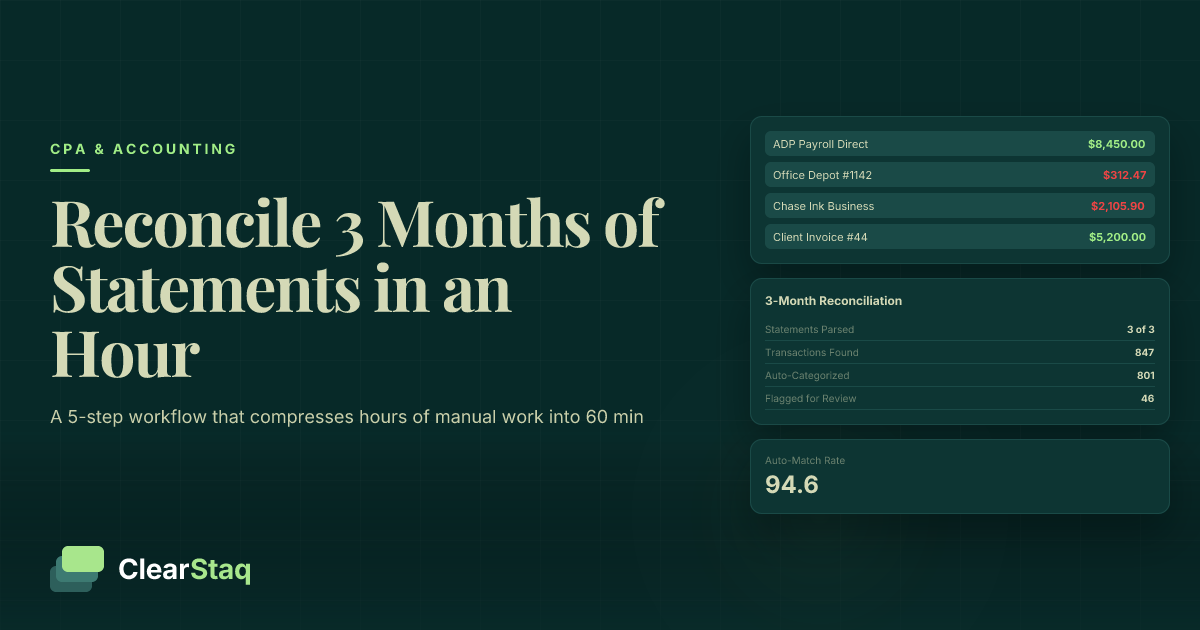
Reconciling three months of bank statements for a new bookkeeping client can be completed in under an hour using a five-step workflow: collect all documents, extract transaction data with automated parsing, establish the correct opening balance, reconcile month by month oldest-first, then deliver a clean report. Automating data extraction accounts for 60–70% of the total time savings.
What you'll learn
- Data extraction from PDFs is the single largest time sink in new client reconciliation, consuming up to 90 minutes manually versus under 5 minutes with parsing automation
- Always establish the opening balance from the prior month's bank statement before importing any transactions — errors here cascade through every subsequent period
- Working chronologically from oldest to newest month is non-negotiable; the ending balance of each month becomes the opening balance of the next
- Batch processing all statements simultaneously eliminates the repeat setup overhead of one-at-a-time manual extraction
- The professional deliverable should include a reconciliation summary, outstanding items list, anomaly log, and chart of accounts — not just a balanced register inside the accounting software
Reconciling three months of bank statements for a new bookkeeping client can be completed in under an hour by following a five-step workflow: collect and standardize all documents, extract transaction data (ideally with automated parsing), establish the correct opening balance, reconcile month by month from oldest to newest, then deliver a clean report. The biggest time savings come from automating the data extraction step, which accounts for 60–70% of total manual effort.
Why New Client Bank Statement Reconciliation Takes So Long (And How to Change That)
Ask any professional bookkeeper what takes the most time when onboarding a new client, and the answer is almost always the same: getting the data out of PDFs and into a format you can actually work with. That single step — which most reconciliation guides skip entirely — is why a three-month reconciliation that should take an hour routinely takes an entire morning.
The good news is that this is a solvable problem. Once you understand where the time actually goes, you can build a workflow that consistently delivers in under 60 minutes — even for clients with multiple accounts and mixed document quality. For a broader look at this opportunity, see our guide to bank statement reconciliation automation for bookkeepers.
Where the Time Actually Goes: A Stage-by-Stage Breakdown
Most bookkeepers underestimate how fragmented their time is across a new client reconciliation. Here's a realistic breakdown of where the minutes disappear:
| Stage | Manual Time | Automated Time |
|---|---|---|
| Document collection and format normalization | 10–20 min | 10 min |
| Data extraction from PDFs | 45–90 min | 3–5 min |
| Opening balance verification | 10–15 min | 10 min |
| Month-by-month transaction matching | 20–30 min | 20 min |
| Categorization and anomaly flagging | 25–30 min | 10 min |
| Report generation and client delivery | 10–15 min | 10 min |
| Total | ~3 hrs 15 min | ~65 min |
The data extraction row tells the whole story. Everything else is manageable. It's the first mile — getting raw PDFs into usable, structured data — that determines whether this job takes one hour or most of a workday.
Why New Client Work Is Harder Than Ongoing Reconciliation
Ongoing reconciliation is straightforward because the foundation is already built: the accounting software has prior period data, the chart of accounts is established, and the opening balance is known. New client work has none of that.
Here's what makes new client bank statement reconciliation bookkeeping uniquely challenging:
- No prior period data in the accounting software to reference or build on
- Mixed document quality — some statements are native PDFs, others are scanned images with varying clarity
- Multiple bank accounts across different institutions, each with different PDF layouts and formatting
- Unknown opening balance — it must be established from scratch, often with incomplete records from the prior bookkeeper
- Potential gaps — missing months that need to be identified, requested, and resolved before reconciliation can proceed
Each of these variables adds time. Handled individually and reactively, they can double or triple your estimate. Handled systematically — with the right intake checklist and the right tools — they become routine.
What to Collect Before You Touch a Single Statement
The single most common cause of a slow new-client reconciliation is starting before you have everything you need. You get three statements, open the first one, realize there's a second account, request those statements, wait a day, and then discover one month is missing. That reactive loop costs hours.
Front-load the intake. Collect everything before you begin processing anything. Use a client bank statement portal for your CPA firm instead of email — it's faster, more secure, and creates a documented intake record automatically.
The New Client Bank Statement Intake Checklist
Send this checklist to every new client before onboarding begins. Make it a non-negotiable part of your engagement setup:
- All active bank accounts during the three-month period — checking, savings, money market, and credit lines
- Complete monthly statements for each account — not year-to-date summaries, which omit transaction-level detail
- Native PDF format — downloaded directly from the bank portal, not photographed or printed and rescanned
- Prior month's ending statement — the month immediately before your engagement period, for opening balance verification
- Notes on any large or unusual transactions — owner draws, large one-time payments, loans received — so you can categorize accurately without guessing
If the client banks at multiple institutions, confirm you have statements from every account at every bank. It's common for clients to forget a secondary savings account or a line of credit they don't use regularly.
How to Handle Scanned vs. Native PDF Statements
Not all PDFs are equal. Understanding the difference between scanned vs. native PDF bank statements directly affects how long your extraction step will take and how much manual review you'll need afterward.
Native PDFs are generated digitally by the bank's system. They contain machine-readable text, which means extraction tools can parse them quickly and with high accuracy. This is what you get when a client downloads statements directly from their online banking portal.
Scanned PDFs are image files — either paper statements that were scanned, or screenshots captured as PDFs. They require optical character recognition (OCR) processing, which is slower and introduces more error risk, particularly with older or low-resolution scans.
In practice: always ask clients to download statements directly from their bank portal. If scanned statements are unavoidable, flag them in your intake log and plan for an extra manual review pass after extraction. Document which statements are which — it matters when you're reviewing confidence scores on the extracted data.
Step 1 — Extract and Standardize the Data (This Is Where Most Time Is Lost)
Every other reconciliation guide on the internet skips this step. They assume the data is already inside your accounting software, neatly organized and ready to match. It isn't. Getting transaction data out of PDF bank statements and into a format your software can use is the first-mile problem of bank statement reconciliation bookkeeping — and it's where most of your time is actually spent.
Manual Extraction: What It Actually Looks Like (and Why It Takes So Long)
Manual extraction from a PDF bank statement sounds simple: open the file, copy the transactions, paste into Excel. In practice, it looks more like this:
- Open the PDF. Try to select a column of figures. The text doesn't select in columns — it selects in rows, or in blocks, or not at all if it's a scanned file.
- Paste into Excel. The data lands in a single column, with dates, descriptions, and amounts merged together.
- Spend 20 minutes splitting columns, removing headers and footers that pasted with the data, fixing date formats, and tracking down wrapped transaction descriptions that split across two rows.
- Repeat for each of the six statements (three months, two accounts).
A skilled bookkeeper who knows exactly what they're doing typically spends 30–60 minutes per statement on manual extraction. For a three-month, two-account engagement, that's 3–6 hours on extraction alone — before the actual reconciliation work begins. If you'd prefer to tackle this step manually for simpler cases, our guide on how to convert bank statements to Excel for bookkeeping walks through the process in detail.
Automated Extraction: How Parsing Tools Compress Hours into Minutes
Bank statement parsing tools read the PDF — native or scanned — and return structured transaction data in seconds. Each transaction comes back with a date, description, debit or credit amount, and running balance, organized in a clean, importable file.
The practical advantages over manual extraction are significant:
- Batch processing — upload all six statements at once and receive all outputs simultaneously. No repeat setup, no statement-by-statement queue.
- 900+ bank format support — different banks produce wildly different PDF layouts. A parsing tool that handles hundreds of formats means no manual reformatting when a client banks at a regional institution you've never processed before.
- Direct import output — the structured CSV or JSON output maps directly into QuickBooks, Xero, or any major accounting software without additional cleanup.
- Confidence scores — automated tools flag individual transactions where extraction confidence is lower, so you know exactly where to focus your manual review. Learn more about how confidence scores on parsed bank statement data work and how to use them effectively.
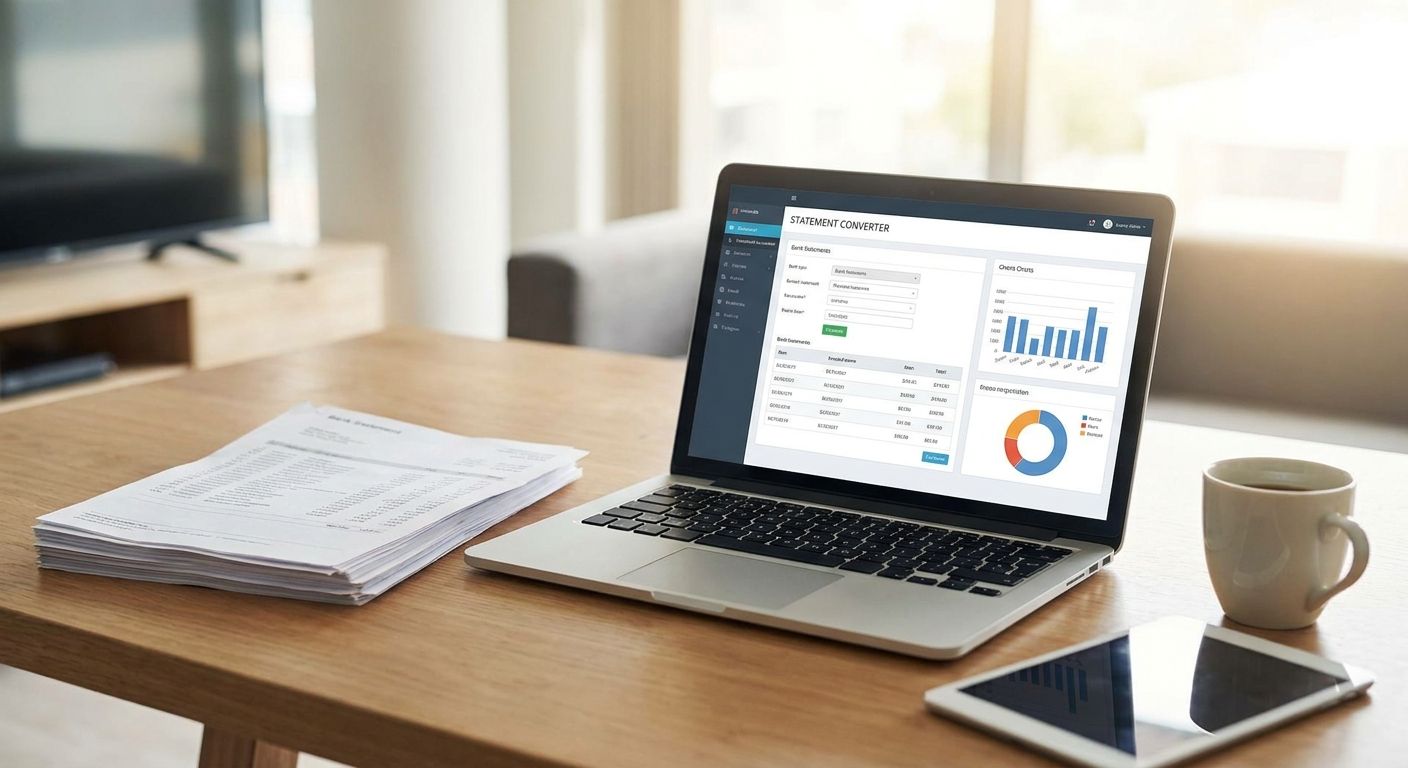
The visual above illustrates what happens in seconds when a PDF bank statement enters the parsing pipeline. What took 45–90 minutes manually becomes a background process you barely notice.
Step 2 — Establish the Opening Balance
The opening balance is the most critical — and most commonly botched — step in new client bank statement reconciliation. Get it wrong, and every single month you reconcile will be off. The error compounds forward through each period, and you won't find it until you've already built three months of incorrect work on a cracked foundation.
The opening balance is simply the ending balance from the last reconciled period. If your engagement covers January, February, and March, your opening balance is the ending balance on the December bank statement.
Finding the Correct Opening Balance When Records Are Messy
In a clean handoff from a prior bookkeeper, this is straightforward. In reality, new client records are often messy. Here's the decision tree:
- Request the prior month's bank statement — the month immediately before your engagement period. The ending balance on that statement is your opening balance. This is the authoritative source.
- If prior bookkeeper records exist, cross-reference their ending balance against the bank statement. If they match, you're aligned. If they don't match, the bank statement wins — always.
- If no prior records exist and the client can't produce the prior month's statement, contact the bank directly to request historical statements. Most banks can provide statements going back 12–24 months.
- Document your opening balance source in your working papers — which statement you used, the date, and the balance. This is your audit trail if questions arise later.
Never estimate or approximate the opening balance. Never use a year-to-date summary that doesn't show the exact month-end balance. The five minutes you spend confirming the correct figure prevent hours of troubleshooting later.
Entering the Opening Balance in QuickBooks and Xero
Once confirmed, the opening balance needs to be entered correctly in your accounting software before any transactions are imported. For a detailed walkthrough of the import process, see our guide on how to import PDF bank statements into QuickBooks.
- QuickBooks Online: Set the opening balance when creating the bank account, or enter it on the first reconciliation screen in the "Beginning Balance" field. If the account already exists with an incorrect balance, a journal entry adjustment will be required before proceeding.
- Xero: Enter the conversion balance when setting up the account. This locks the historical figure so transactions imported afterward reconcile correctly against it.
Don't proceed to Step 3 until the opening balance in your software matches the ending balance on the prior month's bank statement. This is a hard checkpoint, not a suggestion.
Step 3 — Reconcile Month by Month, Oldest First
With clean, structured transaction data imported and the opening balance confirmed, you're ready to reconcile. The rule is simple: always work chronologically. Month 1 first, then Month 2, then Month 3. The ending balance of each month becomes the opening balance of the next. Work out of order and you create cascading errors that are extremely difficult to untangle.
For each month, the process is:
- Import the extracted transaction data for that month and account into your accounting software
- Open the reconciliation screen and enter the statement's ending balance
- Match each bank transaction to the corresponding book entry
- Flag timing differences (outstanding checks, deposits in transit) separately from true discrepancies
- Confirm the reconciliation difference shows zero before moving to the next month
Handling Multiple Bank Accounts Simultaneously
If your new client has two or more accounts, reconcile each account independently through all three months before moving to the next account. Jumping between accounts mid-workflow introduces confusion and makes it easy to miss intercompany transfers.
Key rules for multi-account reconciliation:
- Keep separate working documents for each account — one set of notes per account, not a single merged file
- Intercompany transfers between accounts need to be matched on both sides — a transfer from checking to savings should appear as a withdrawal in one account and a deposit in the other
- Flag any account-to-account transfers during extraction so they're easy to identify during the matching step
- Batch extraction tools process all accounts simultaneously — import per account into the software, not in a single combined file
Common Discrepancies and How to Resolve Them
When a month doesn't reconcile to zero, work through these possibilities in order:
- Outstanding checks — checks issued but not yet cleared the bank. Normal. Document them and carry them forward to the next period.
- Deposits in transit — deposits recorded in the books but not yet on the bank statement. Verify they clear in the subsequent period.
- Duplicate entries — common in new client files where a prior bookkeeper double-recorded transactions. Search for transactions with the same date and amount appearing twice.
- Transposed numbers — a $91 entry recorded as $19. Search for the difference amount (in this case, $72) in both the bank statement and the books.
- Missing transactions — bank fees, service charges, or returned items not in the books. Add them with proper categorization.
Step 4 — Categorize and Flag Anomalies
Categorization assigns each transaction to an account in the chart of accounts — rent, payroll, utilities, merchant services, and so on. For a new client, you may be building the chart of accounts from scratch based on what you see in the transactions.
Start by scanning all three months of transaction descriptions to identify the recurring categories before you begin assigning. This gives you a complete picture before you commit to a structure. For a detailed reference on IRS-compliant expense categories, see our guide to categorize business expenses from bank statements.
Building a Chart of Accounts for a New Client from Bank Statement Data
Most small business bank statements reveal a predictable set of categories. Look for these recurring patterns:
- Rent or lease payments (typically a recurring fixed amount to the same payee)
- Payroll (often via a payroll processor like ADP or Gusto — identifiable by the payee name)
- Utilities (electric, gas, internet — recurring monthly to utility providers)
- Merchant services and payment processing fees
- Loan or line of credit payments
- Owner draws (transfers to personal accounts or checks to the owner)
Any transaction that can't be categorized with confidence goes to a suspense account. Don't guess and don't leave it blank — suspense is a placeholder that requires client input before the period can be closed. Present the suspense list to your client as part of your deliverable and get their explanations before finalizing.
Anomalies Worth Flagging for Your Client
During categorization, watch for these patterns that warrant a conversation with your client:
- Large transfers to personal accounts — could be a legitimate owner draw, or could be an unauthorized withdrawal. Confirm which.
- Duplicate transactions on the same day for the same amount — may be a double payment or a data entry error from the prior bookkeeper.
- NSF fees or returned items — signals of cash flow stress. Flag these for your client's awareness, especially if they're recurring.
- Unrecognized recurring charges — subscription services the client may have forgotten about, or potentially unauthorized charges.
- Round-number cash deposits that don't match sales patterns — worth confirming, particularly for cash-heavy businesses.
Document every anomaly you flag. Don't bury it in the transaction register — include it explicitly in the report you deliver in Step 5.
Step 5 — Deliver a Clean Reconciliation Report to Your Client
The deliverable isn't just a balanced reconciliation inside your accounting software. A new client deserves a clear report that shows what you did, what you found, and what still needs their input. A professional deliverable also protects you — it creates a documented record of the state of the books when you took over.
What the Reconciliation Report Should Include
Structure your report with one section per month per account:
- Reconciliation summary — beginning balance, total deposits, total withdrawals, ending balance per bank, ending balance per books, and the reconciling difference (should be zero for each completed period)
- Outstanding items list — any outstanding checks or deposits in transit at each month-end, carried forward to the next period
- Anomaly log — a plain-language list of flagged transactions, your notes on each, and the recommended resolution or open question for the client
- Chart of accounts used — with a notation of client approval (or pending approval for suspense items)
- Opening balance source documentation — which statement you used and the confirmed figure
Client Communication After Completion
Send the report with a plain-language summary email — not just the accounting documents. Most clients can't read a reconciliation report without guidance. Tell them what you did, what you found, and what you need from them before you can close the file.
Specifically:
- Highlight any open questions that require their input — suspense account items, anomalies you flagged, transactions you couldn't categorize
- Confirm the chart of accounts with them before locking the periods
- Note any items that may have tax implications and flag them for their CPA or tax preparer
- Set expectations for ongoing monthly reconciliation — explain how the new workflow will operate going forward and what you'll need from them each month
How Automation Compresses a 3-Hour Job Into Under 60 Minutes
The five-step workflow above works manually. But the time benchmark — under 60 minutes — is only achievable with automation handling the extraction step. Here's where the leverage actually comes from.
Time Benchmark: Manual Workflow vs. Automated Workflow
Breaking down the realistic time for each approach across a three-month, two-account new client engagement:
| Stage | Manual | Automated | Time Saved |
|---|---|---|---|
| Document collection | 15 min | 10 min | 5 min |
| Data extraction (6 statements) | 90 min | 5 min | 85 min |
| Opening balance verification | 15 min | 10 min | 5 min |
| Month-by-month reconciliation | 30 min | 20 min | 10 min |
| Categorization | 30 min | 10 min | 20 min |
| Report and delivery | 15 min | 10 min | 5 min |
| Total | ~3 hrs 15 min | ~65 min | ~130 min |
The extraction step accounts for 85 of the 130 minutes saved. That's where the benchmark lives or dies. For bookkeeping practices that want to automate bank statement processing at scale, this compounding effect across dozens of clients becomes a substantial capacity gain.
Batch processing amplifies this further. Manual extraction processes one statement at a time — there's inherent overhead in opening a file, cleaning the output, and moving to the next. When you can batch process bank statements across all three months and all accounts simultaneously, you eliminate that repeat setup overhead entirely. To understand the full scale impact, see how CPA firms process hundreds of bank statements with AI during peak season.
How ClearStaq Handles the Extraction Step for Bookkeepers
ClearStaq is built specifically for the extraction problem — the first-mile step that every other reconciliation guide ignores. Here's what the workflow looks like in practice:
- Upload all PDF statements in a single batch — native PDFs, scanned PDFs, or a mix. No pre-sorting required.
- ClearStaq processes all statements simultaneously, returning structured transaction data (date, description, amount, running balance) for each statement in seconds.
- 900+ bank format support means no manual reformatting when your client banks at Chase, Bank of America, Wells Fargo, or any regional institution you haven't processed before.
- Structured CSV or JSON output maps directly into QuickBooks, Xero, or any major accounting software — no additional cleanup, no manual re-entry.
- Confidence scores flag individual transactions where extraction confidence is lower, so your review time focuses on exceptions rather than routine entries.
- Anomaly signals surface unusual patterns — round-number deposits, duplicate amounts, large transfers — during extraction, so you're already flagging issues before reconciliation begins.
The result: your expertise goes to reconciliation judgment, categorization decisions, and client communication — not to copying numbers out of PDFs. That's the shift that makes the 60-minute benchmark real. ClearStaq for bookkeepers and CPA firms is designed around exactly this workflow.
See How Fast the Extraction Step Can Be
Upload a client's PDF bank statement to ClearStaq and get structured, import-ready transaction data in seconds — no reformatting required. Start your free trial today.
Frequently Asked Questions
How long does it take a bookkeeper to reconcile 3 months of bank statements?
Manually, a professional bookkeeper typically spends 2–4 hours reconciling three months of bank statements for a new client, with data extraction from PDFs accounting for the majority of that time. Using automated bank statement parsing tools, the same workflow can be completed in under 60 minutes by eliminating manual data entry entirely.
What is the fastest way to reconcile a backlog of bank statements?
The fastest approach is to automate the data extraction step first — use a bank statement parsing tool to convert all PDF statements into structured transaction data simultaneously, then import directly into your accounting software. Working chronologically from oldest to newest month, with the correct opening balance established upfront, prevents rework and keeps the workflow linear.
What is catch-up bookkeeping and how does it work?
Catch-up bookkeeping is the process of reconciling and categorizing financial transactions for a period that wasn't maintained in real time — common when a new client has months or years of unreconciled records. It follows the same reconciliation workflow as current bookkeeping but starts with establishing an accurate opening balance and working forward chronologically through each unreconciled period.
Can you automate bank statement reconciliation?
The data extraction and import steps of bank statement reconciliation can be fully automated using parsing tools that convert PDF bank statements into structured data ready for accounting software. The matching and judgment steps — identifying discrepancies, categorizing ambiguous transactions, and resolving anomalies — still benefit from human review, but automation reduces total time by 60–70%.
How do I import PDF bank statements into QuickBooks for reconciliation?
QuickBooks Online doesn't natively import PDFs — the statements must first be converted to a structured format (CSV or OFX) using a bank statement parsing tool. Once converted, the file can be imported via the Banking menu under "Upload from file," after which transactions are matched to existing book entries during the reconciliation screen.
Ready to Cut Your New Client Reconciliation Time in Half?
Stop spending the first hour of every new client engagement just getting data out of PDFs. ClearStaq handles the extraction so you can focus on the reconciliation work that actually requires your expertise. Start your free trial — no credit card required.
Frequently Asked Questions
How long does it take a bookkeeper to reconcile 3 months of bank statements?
Manually, a professional bookkeeper typically spends 2–4 hours reconciling three months of bank statements for a new client, with data extraction from PDFs accounting for the majority of that time. Using automated bank statement parsing tools, the same workflow can be completed in under 60 minutes by eliminating manual data entry entirely.
What is the fastest way to reconcile a backlog of bank statements?
The fastest approach is to automate the data extraction step first — use a bank statement parsing tool to convert all PDF statements into structured transaction data simultaneously, then import directly into your accounting software. Working chronologically from oldest to newest month, with the correct opening balance established upfront, prevents rework and keeps the workflow linear.
What is catch-up bookkeeping and how does it work?
Catch-up bookkeeping is the process of reconciling and categorizing financial transactions for a period that was not maintained in real time — common when a new client has months or years of unreconciled records. It follows the same reconciliation workflow as current bookkeeping but starts with establishing an accurate opening balance and working forward chronologically through each unreconciled period.
Can you automate bank statement reconciliation?
The data extraction and import steps of bank statement reconciliation can be fully automated using parsing tools that convert PDF bank statements into structured data ready for accounting software. The matching and judgment steps — identifying discrepancies, categorizing ambiguous transactions, and resolving anomalies — still benefit from human review, but automation reduces total time by 60–70%.
How do I import PDF bank statements into QuickBooks for reconciliation?
QuickBooks Online does not natively import PDFs — the statements must first be converted to a structured format (CSV or OFX) using a bank statement parsing tool. Once converted, the file can be imported via the Banking menu under 'Upload from file,' after which transactions are matched to existing book entries during the reconciliation screen.
ClearStaq Team
Product Team
The ClearStaq team builds AI-powered tools for bank statement parsing, fraud detection, and income verification.