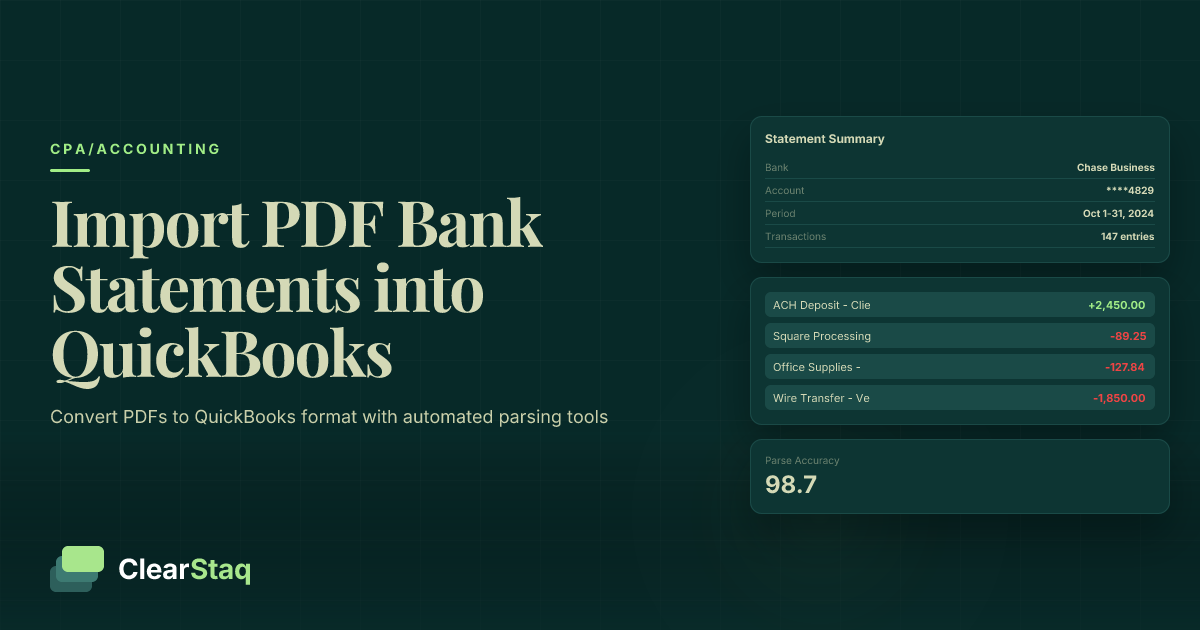
QuickBooks cannot directly import PDF bank statements. You must first convert PDFs to CSV, QBO, or IIF format using manual transcription, OCR software, or automated parsing tools like ClearStaq. The converted file can then be uploaded through QuickBooks' Banking section for transaction import and categorization.
What you'll learn
- QuickBooks requires CSV, QBO, or IIF formats and cannot import PDFs directly
- Manual PDF conversion takes 2-3 hours per statement versus seconds with automation
- Automated parsing tools achieve 99.9% accuracy compared to error-prone manual entry
- API integration enables bulk processing for accounting firms with multiple clients
- Proper data validation prevents import errors and ensures accurate financial records
QuickBooks cannot directly import PDF bank statements. You must first convert PDFs to CSV, QBO, or IIF format using manual transcription, OCR software, or automated parsing tools like ClearStaq. The converted file can then be uploaded through QuickBooks' Banking section for transaction import and categorization.
Can QuickBooks Import PDF Bank Statements Directly?
The short answer is no — QuickBooks does not support direct PDF imports for bank statements. This limitation catches many small business owners and accountants off guard when they try to upload their monthly statements. You'll need to convert your PDF files into a format QuickBooks can understand before importing any transaction data.
QuickBooks requires structured data formats that separate transaction information into distinct fields like date, description, and amount. PDF files, while great for human reading, store information as visual elements rather than structured data, making direct import impossible.
Supported File Formats for QuickBooks Import
QuickBooks accepts four main file formats for bank statement imports:
- CSV (Comma-Separated Values) — The most common format, requiring columns for Date, Description, and Amount at minimum
- QBO (QuickBooks Online) — Native QuickBooks format that includes additional transaction metadata
- IIF (Intuit Interchange Format) — Legacy format still supported for compatibility with older systems
- OFX (Open Financial Exchange) — Standard format used by many banks for direct downloads
Each format has specific requirements. CSV files must follow QuickBooks' column structure exactly, with dates in MM/DD/YYYY format and amounts as positive or negative numbers. File size limits apply too — QuickBooks Online restricts uploads to 350KB for CSV files, which typically handles about 1,000 transactions.
Why PDFs Don't Work with QuickBooks
PDF bank statements present three major challenges for accounting software:
Unstructured data format: PDFs store text and numbers as positioned elements on a page, not as database fields. What looks like a neat transaction table to you is actually hundreds of individual text elements to a computer.
No standardization across banks: Every bank formats statements differently. Chase might put dates on the left, while Wells Fargo puts them on the right. Some banks include running balances, others don't. This variation makes automatic parsing extremely difficult.
Manual extraction needed: Without specialized software, you're stuck copying and pasting each transaction by hand — a process that's both time-consuming and error-prone, especially for statements with hundreds of transactions.
Method 1: Manual PDF to CSV Conversion
If you're dealing with just a few transactions, manual conversion might work. It's tedious but straightforward. You'll need a spreadsheet program like Excel or Google Sheets and patience for data entry.
The process involves opening your PDF statement, creating a properly formatted CSV template, and manually typing each transaction. For a typical 5-page statement with 150 transactions, expect to spend 2-3 hours on accurate data entry.
Setting Up Your CSV Template
QuickBooks expects specific column headers in your CSV file. Create a new spreadsheet with these three essential columns:
| Column | Format | Example |
|---|---|---|
| Date | MM/DD/YYYY | 03/15/2024 |
| Description | Text (no commas) | Office Supplies Store #1234 |
| Amount | Positive/Negative number | -125.50 |
Date formatting is crucial — QuickBooks won't recognize dates in other formats like DD/MM/YYYY or YYYY-MM-DD. For the amount column, use negative numbers for withdrawals and positive for deposits. Don't include currency symbols or thousands separators.
Manual Data Entry Best Practices
Accuracy matters more than speed when transcribing bank data manually. These practices help minimize errors:
Double-check transaction amounts: Transposing digits (typing 156 instead of 165) is the most common error. After entering each page, sum your amounts and compare to the page subtotal on your statement.
Handle multi-page statements systematically: Work through pages sequentially and mark each completed transaction with a highlighter in your PDF viewer. This prevents duplicate entries or missed transactions.
Manage foreign characters and symbols: Remove special characters from merchant names. Replace é with e, remove ™ symbols, and convert & to "and". QuickBooks can misinterpret these characters during import.
Method 2: Using Bank Statement Parsing Software
Automated bank statement parsing transforms hours of manual work into seconds of processing. These tools use advanced algorithms to extract transaction data from PDFs and convert it to QuickBooks-ready formats automatically.
Modern parsing software goes beyond simple text extraction. It understands bank statement layouts, identifies transaction patterns, and maintains accuracy even with complex multi-column formats or scanned documents.
OCR vs Advanced Parsing Technology
Not all PDF extraction tools are equal. Basic OCR (Optical Character Recognition) software often struggles with financial documents:
OCR limitations with scanned PDFs: Standard OCR treats each page as an image, attempting to recognize individual characters. This approach fails when statements have background patterns, slight skewing, or low scan quality — common issues with bank PDFs.
Template-based vs AI-powered extraction: Older parsing tools require custom templates for each bank format. If your bank changes their statement layout, the template breaks. AI-powered solutions like ClearStaq adapt automatically to format changes and handle new banks without configuration.
Handling complex bank formats: Some banks split transaction data across multiple lines or use nested tables for fees. Advanced parsing technology reconstructs complete transactions from these fragments, something basic OCR cannot do.
6 fields extracted automatically • 99.8% accuracy
Choosing the Right Parsing Solution
Consider these factors when selecting parsing software for your QuickBooks workflow:
Accuracy requirements: For tax preparation or financial reporting, you need 99%+ accuracy. Look for solutions that guarantee accuracy levels and offer validation tools to catch any errors.
Volume considerations: Processing one statement monthly? A simple tool might suffice. Handling dozens of client statements? You need bulk processing capabilities and automation features.
Integration capabilities: The best parsing solutions offer direct QuickBooks integration through APIs, eliminating the CSV export-import step entirely.
Skip the Manual Conversion Process
Try ClearStaq's automated PDF parsing and see your bank statements converted to QuickBooks format in seconds.
Step-by-Step: Importing Bank Data into QuickBooks
Once you've converted your PDF to a compatible format, importing into QuickBooks follows a standard process. These steps work for both QuickBooks Online and Desktop versions, though menu locations differ slightly.
The import process typically takes 5-10 minutes for a standard monthly statement. QuickBooks validates your file, maps the data to your accounts, and helps you categorize transactions for accurate bookkeeping.
Uploading Your Converted File
Start by navigating to the Banking section in QuickBooks:
- Access the upload feature: In QuickBooks Online, click Banking > Upload transactions. In Desktop, go to File > Utilities > Import > Web Connect Files
- Select your converted file: Click "Upload from file" and browse to your CSV, QBO, or IIF file. QuickBooks shows a preview of recognized columns
- Confirm initial import: Review the transaction count and date range. QuickBooks displays any formatting errors at this stage
If QuickBooks rejects your file, the error message usually indicates formatting issues. Common problems include incorrect date formats, unrecognized characters, or missing required columns.
Transaction Review and Categorization
After successful upload, QuickBooks presents your transactions for review. This critical step ensures accurate financial records:
Matching existing transactions: QuickBooks attempts to match imported transactions with those already in your register. Review suggested matches carefully — similar amounts on nearby dates might not be the same transaction.
Assigning expense categories: Each transaction needs a category for proper reporting. QuickBooks learns from your choices, improving future suggestions. Be consistent with categorization to maintain clean books.
Handling duplicate detection: The duplicate detection algorithm isn't perfect. It might miss duplicates with slightly different descriptions or dates. Manual review prevents double-counting expenses or income.
Finalizing the Import
Before accepting all transactions, perform these final checks:
Confirm transaction details: Spot-check 10-15 transactions against your original statement. Verify amounts, dates, and descriptions match exactly.
Complete bank reconciliation: Compare your imported ending balance to the statement balance. Any discrepancy indicates missing or incorrectly imported transactions.
Save import settings: If you'll import from this bank regularly, save your column mappings and categorization rules. This speeds up future imports significantly.
Troubleshooting Common Import Issues
Even with careful preparation, imports can fail. Understanding common issues helps you resolve them quickly and avoid repeated errors.
Most import problems stem from formatting inconsistencies between what QuickBooks expects and what your file contains. Error messages often point to the general issue but not the specific problematic transaction.
CSV Formatting Errors
CSV files are deceptively simple but prone to formatting issues:
Common delimiter issues: QuickBooks expects commas between fields. If your data contains commas (like "Smith, John LLC"), enclose the entire field in quotes. Some banks export with semicolons or tabs instead — you'll need to convert these.
Header row problems: QuickBooks looks for specific header names. "Transaction Date" won't work if QuickBooks expects "Date". Remove spaces and special characters from headers.
Empty field handling: Blank cells can break imports. Fill empty description fields with a placeholder like "No description" rather than leaving them blank.
Transaction Matching Problems
QuickBooks' matching algorithm sometimes creates more problems than it solves:
Duplicate detection failures: The system might not recognize duplicates if merchant names vary slightly ("AMAZON.COM" vs "Amazon.com*123456"). Review all suggested matches before accepting.
Amount discrepancies: Pending transactions might show different amounts than settled ones. Credit card tips often cause mismatches between authorized and final amounts.
Description field issues: Some banks truncate long merchant names differently in downloads versus PDFs. This creates matching problems for recurring transactions.
Automating Bank Statement Imports for Accounting Firms
Manual imports work for individual businesses, but accounting firms need scalable solutions. Processing dozens of client statements monthly demands automation. Modern bank statement extraction software with API integration transforms this workflow.
API-based automation eliminates repetitive tasks while maintaining accuracy and compliance. Instead of downloading, converting, and uploading each statement, you can process entire client portfolios in minutes.
API Integration Setup
Setting up automated workflows requires initial configuration but pays dividends in time savings:
QuickBooks API requirements: You'll need a QuickBooks Online Advanced subscription for API access. Desktop versions require third-party middleware for automation.
Authentication and permissions: OAuth 2.0 authentication ensures secure connections. Each client must authorize your app to access their QuickBooks data — a one-time process that takes about two minutes.
Automated workflow configuration: Map your parsing service outputs to QuickBooks fields once. Set rules for transaction categorization based on merchant names or amounts. The system handles future imports automatically.
{
  "status": "success",
  "fraud_score": 57,
  "transactions": 47,
  "bank": "Chase",
  "processing_time_ms": 238
}Scaling for Multiple Clients
Automation really shines when handling multiple clients. ClearStaq's CPA automation solutions process hundreds of statements simultaneously while maintaining strict data segregation.
Batch processing capabilities: Upload multiple PDF statements at once. The system identifies which statement belongs to which client through intelligent parsing, routing data to the correct QuickBooks account.
Client data segregation: Enterprise-grade security ensures complete separation between client data. SOC2 compliance provides audit trails and access controls meeting regulatory requirements.
Automated reconciliation workflows: Configure rules to flag discrepancies automatically. The system alerts you to missing transactions, duplicate entries, or unusual patterns requiring review.
Best Practices for Accurate Imports
Successful QuickBooks integration depends on consistent processes and attention to detail. These practices, refined from processing millions of transactions, ensure accurate financial document processing.
Whether you're handling one business or hundreds of clients, these guidelines prevent common errors and streamline reconciliation.
Pre-Import Data Validation
Catching errors before import saves hours of cleanup:
Transaction completeness checks: Compare transaction counts between your PDF and converted file. Missing transactions often occur at page breaks or with pending items.
Amount accuracy verification: Sum all transactions and compare to the statement's ending balance. Any discrepancy indicates extraction errors requiring investigation.
Date range validation: Ensure your import covers the complete statement period. Some banks include prior month's ending transactions, which can cause duplicates if not filtered.
Post-Import Reconciliation
Trust but verify — always reconcile after importing:
Compare totals with original statements: Your QuickBooks balance should match the bank statement exactly. Investigate any variance immediately.
Identify missing transactions: Sort by date and scan for gaps. Banks sometimes post transactions out of chronological order, making omissions hard to spot.
Correct categorization errors: Review auto-categorized transactions, especially for new vendors. Consistent categorization improves financial reporting accuracy and makes tax preparation simpler.
Frequently Asked Questions
Can QuickBooks directly import PDF bank statements?
No, QuickBooks cannot directly import PDF files. You must first convert PDFs to supported formats like CSV, QBO, or IIF before importing into QuickBooks.
What file formats does QuickBooks accept for bank imports?
QuickBooks accepts CSV, QBO (QuickBooks Online), IIF (Intuit Interchange Format), and OFX files for bank statement imports.
How do I convert a PDF bank statement to CSV for QuickBooks?
You can manually transcribe data into CSV format or use automated parsing software to extract transaction data and convert it to QuickBooks-compatible CSV format.
What's the most accurate way to import bank statements into QuickBooks?
Automated parsing tools like ClearStaq provide 99.9% accuracy compared to manual transcription, which is prone to human error and time-consuming for large statements.
How can accounting firms automate bank statement imports for multiple clients?
Use API-based parsing solutions that integrate directly with QuickBooks Online, enabling bulk processing and automated workflows while maintaining client data segregation.
Ready to Automate Your QuickBooks Imports?
Stop spending hours converting PDFs manually. ClearStaq automates bank statement parsing for QuickBooks with 99.9% accuracy — try it free today.
Frequently Asked Questions
Can QuickBooks directly import PDF bank statements?
No, QuickBooks cannot directly import PDF files. You must first convert PDFs to supported formats like CSV, QBO, or IIF before importing into QuickBooks.
What file formats does QuickBooks accept for bank imports?
QuickBooks accepts CSV, QBO (QuickBooks Online), IIF (Intuit Interchange Format), and OFX files for bank statement imports.
How do I convert a PDF bank statement to CSV for QuickBooks?
You can manually transcribe data into CSV format or use automated parsing software to extract transaction data and convert it to QuickBooks-compatible CSV format.
What's the most accurate way to import bank statements into QuickBooks?
Automated parsing tools like ClearStaq provide 99.9% accuracy compared to manual transcription, which is prone to human error and time-consuming for large statements.
How can accounting firms automate bank statement imports for multiple clients?
Use API-based parsing solutions that integrate directly with QuickBooks Online, enabling bulk processing and automated workflows while maintaining client data segregation.
ClearStaq Team
Product Team
The ClearStaq team builds AI-powered tools for bank statement parsing, fraud detection, and income verification.